Manage and operate your assets over aerial maps: georeferenced reports, work orders, geofences and field evidence, coordinated from a single place.
No matter the size of the orchestra. You hold the baton; InfraOpera synchronizes every asset, team and intervention in its exact place on the territory.
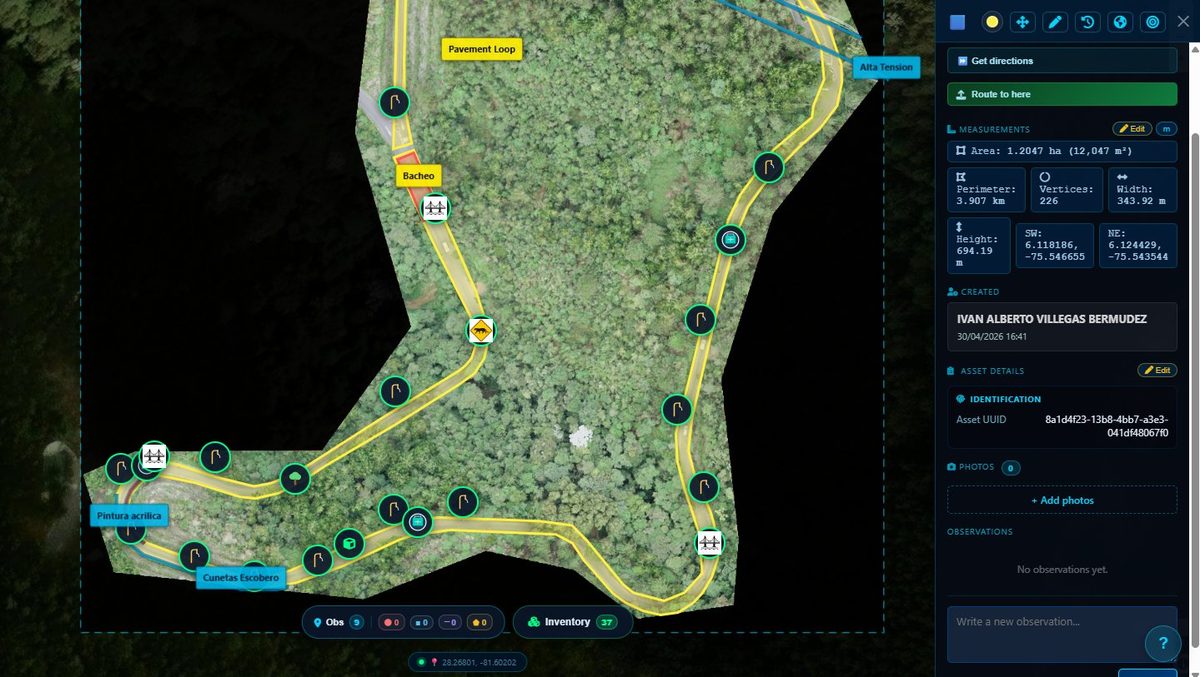
InfraOpera brings together your aerial imagery, your assets and your team in a live geospatial environment, where every action happens exactly where it should.
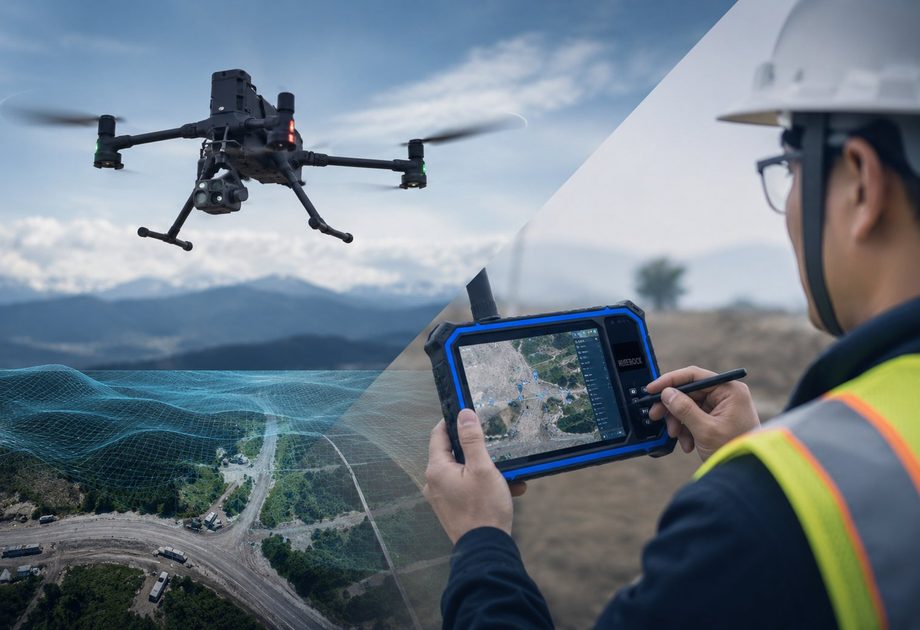
GeoTIFF orthophotos and rasters from drones, data from a field collector, or the GPS-enabled phones of your collaborators and citizens. InfraOpera receives and organizes it all on a single georeferenced layer.
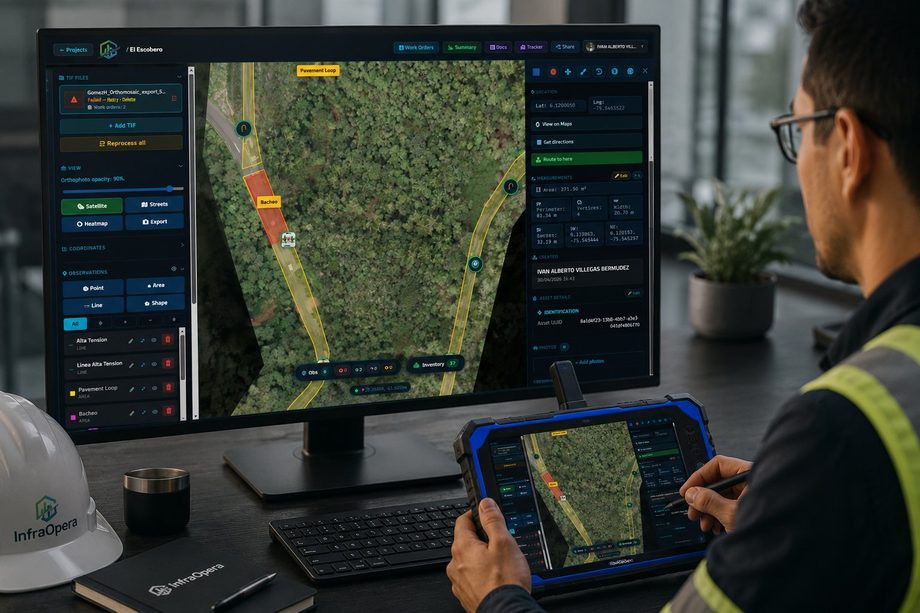
Create georeferenced reports as points, lines or areas. Attach photos and observations, and follow each incident in its exact context.
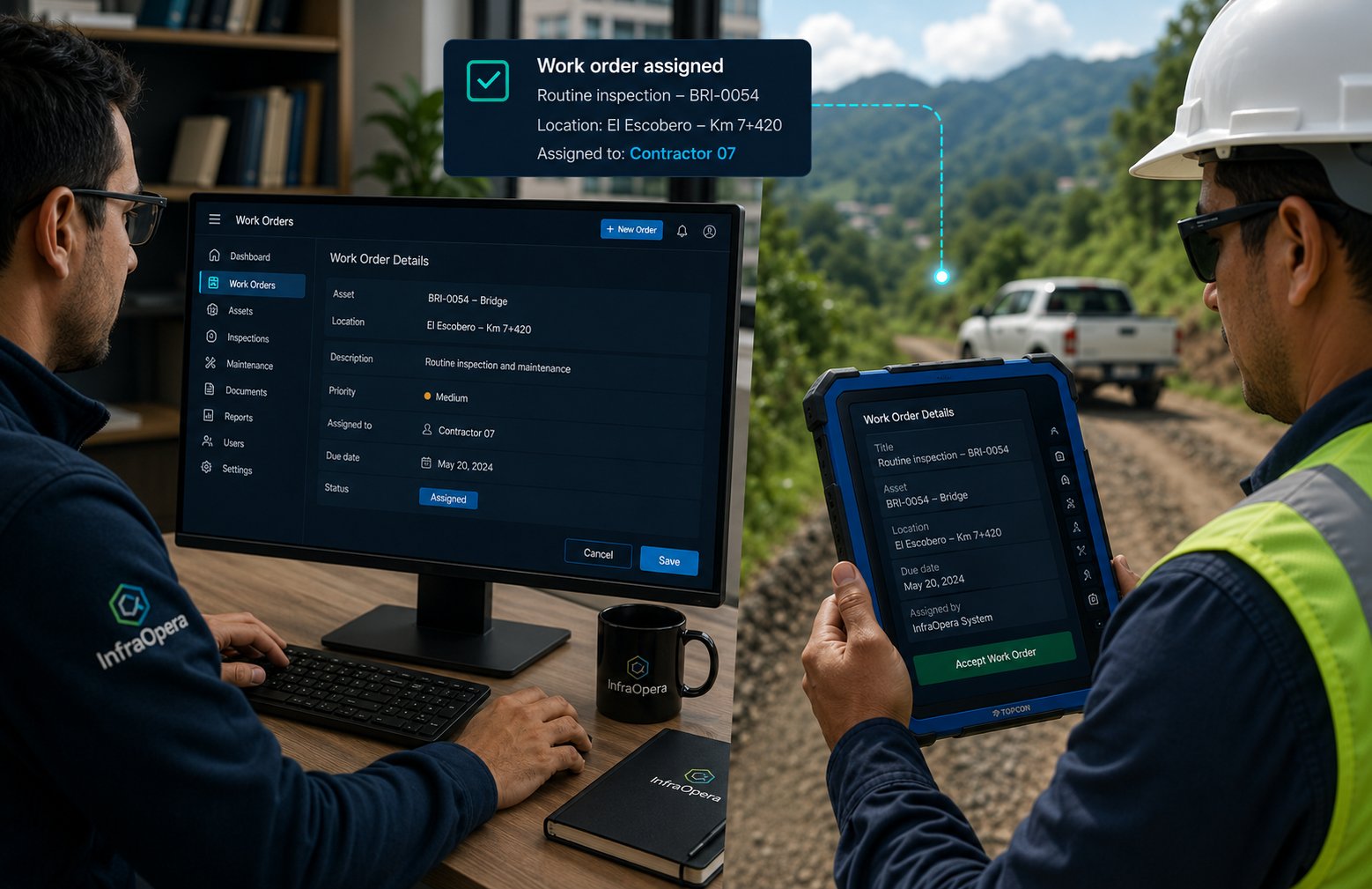
Assign tasks to your team, defining the scope by image and by report. Each role sees only the work that belongs to it.
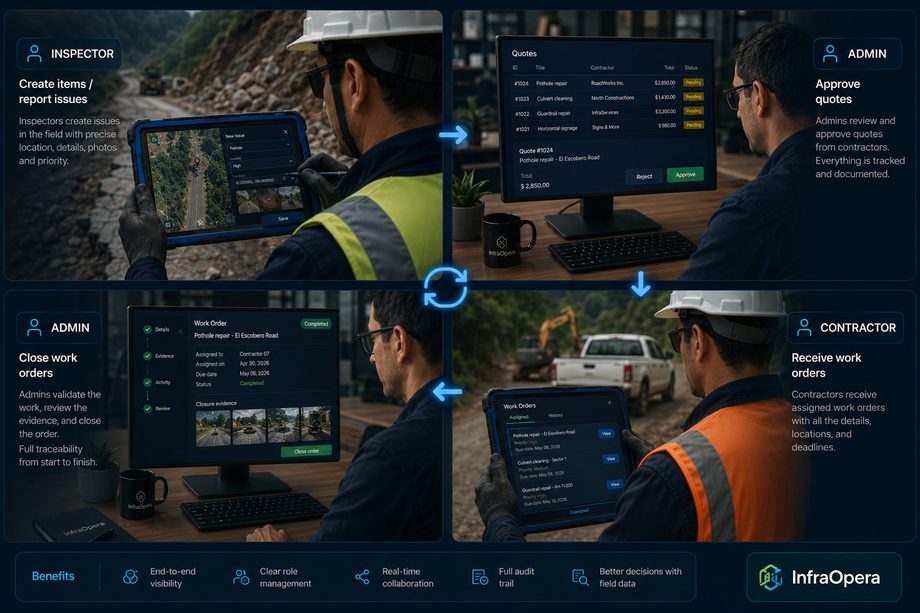
Add inspectors and collaborators with precise permissions by role, from incident reporting to field resolution.
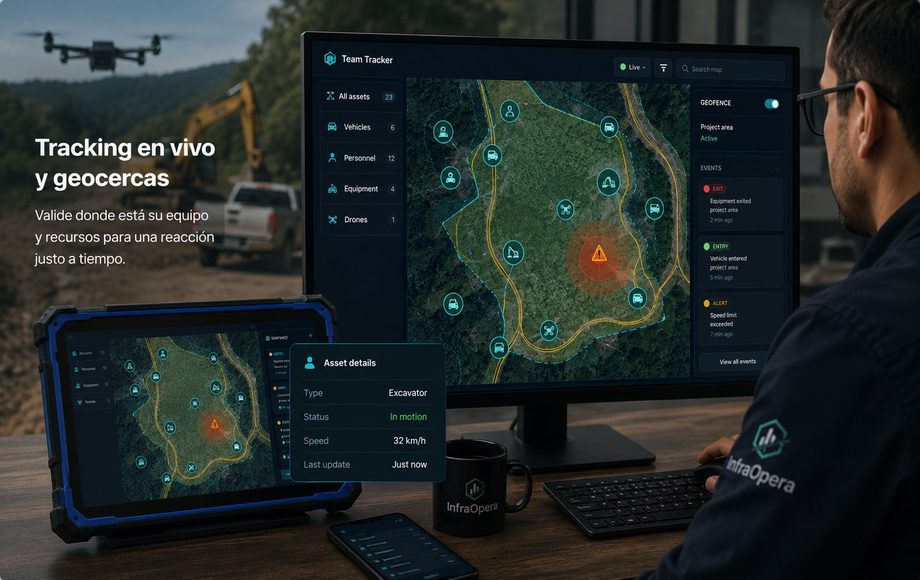
Verify where your team and resources are for a just-in-time reaction. Each area you draw becomes a geofence that records entries and exits in real time.
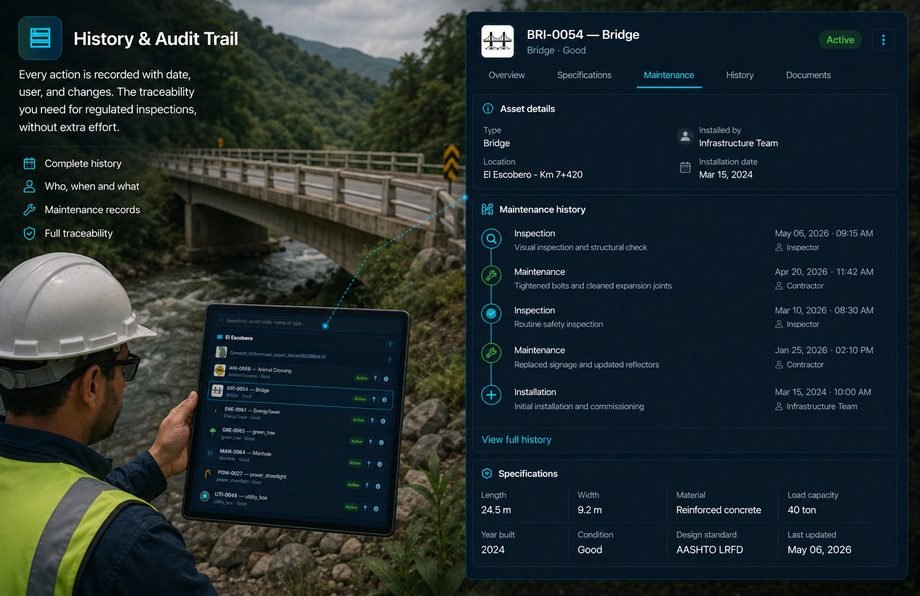
Every action is recorded with date, author and changes. The traceability that regulated inspections need, with no extra effort.
Like an opera conductor who walks in, sets the tempo and closes the piece: load, assign and verify.
Upload GeoTIFF rasters from drone flights, or receive data from field collectors and GPS-enabled phones of your team and citizens. Everything is georeferenced on a single layer.
Mark incidents directly on the map, describe the findings, attach photos and create work orders for your field team.
Monitor progress in real time and generate reports with full traceability for inspections and compliance.
Before you operate, you need the map. Bring yours already processed, or process your flight in Capture: turn it into 2D and 3D models, tiles and analysis, and get the TIFF ready for InfraOpera.
Powered by the InfraOpera Mapping Engine™
Already have processed GeoTIFF orthophotos or rasters? Upload them directly and start operating on them in minutes.
Have the raw flight? Process it yourself in Capture: generate 2D and 3D models, tiles and image analysis, and produce the TIFF ready to operate in InfraOpera.
The same geospatial operation engine, speaking the language of each sector.
Runways, jet bridges and services
Power, water, gas, sewerage and telecom
Corridors and signage
Urban, theme, water parks and green areas
Complexes and common areas
Common assets and contractors
Mining, energy and cement
Estates, irrigation and rural infrastructure
Anyone —a resident, a citizen, a visitor— can report an incident without paying and without friction. Each report arrives georeferenced to whoever operates, turning the community into the eyes of the territory.
We are a layer of coordination and decision support. You own your information at all times, and we are transparent about what we do and what we don't.
You keep full ownership of everything you upload or generate. InfraOpera only processes that information to provide you the service.
Geolocation is used exclusively for geofences and coordination. We don't store a tracking history unless you configure it.
Cloud infrastructure with access controls and encryption where applicable. No system is infallible, and we say so plainly.
We'll show you InfraOpera with a real case on the map: an asset, an incident and a work order from start to finish.